Technology

Optimize your PC for gaming

Hypertune optimizes your PC for gaming. It's an app for Windows 10 and 11 that reads your hardware once, then tunes your CPU, GPU, Windows, network and memory settings, and sets up a profile for each game. You choose which features it applies.

01 Processor

CPU Overclocking

Powered by official Intel and AMD toolkits

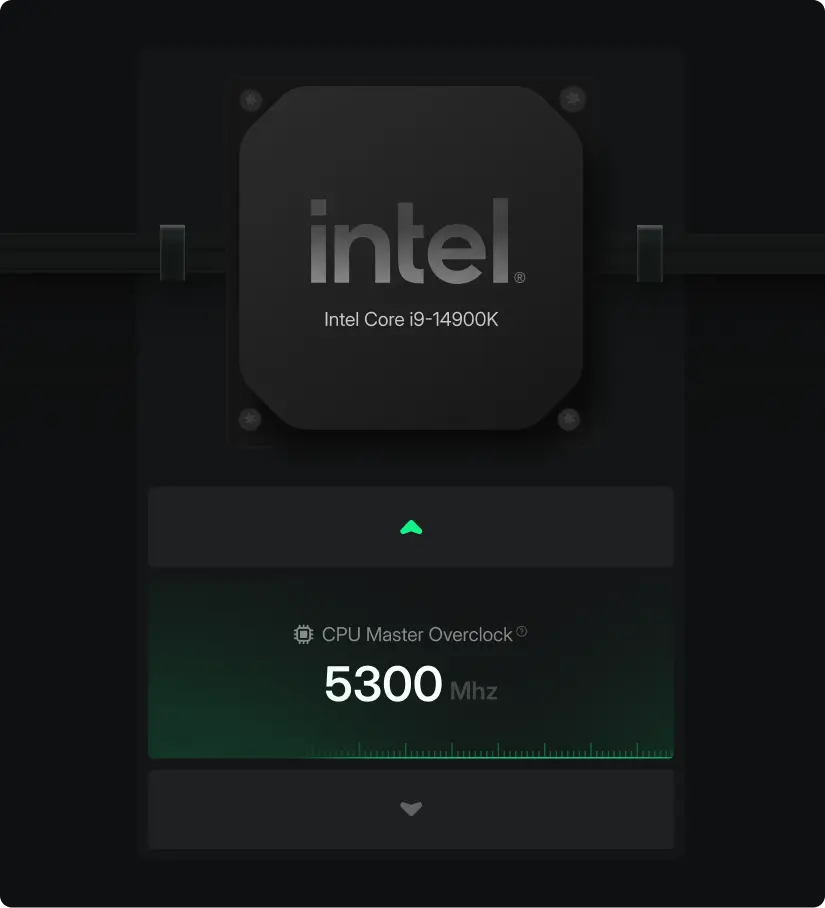
Push your processor further with CPU overclocking software tailored to your exact hardware. Hypertune squeezes performance while keeping your system stable and safe.

Hypertune CPU Overclocking screen showing CPU Master Overclock at 5300 MHz on an Intel Core i9-14900K

02 Graphics

GPU Overclocking

Smart overclocking profile

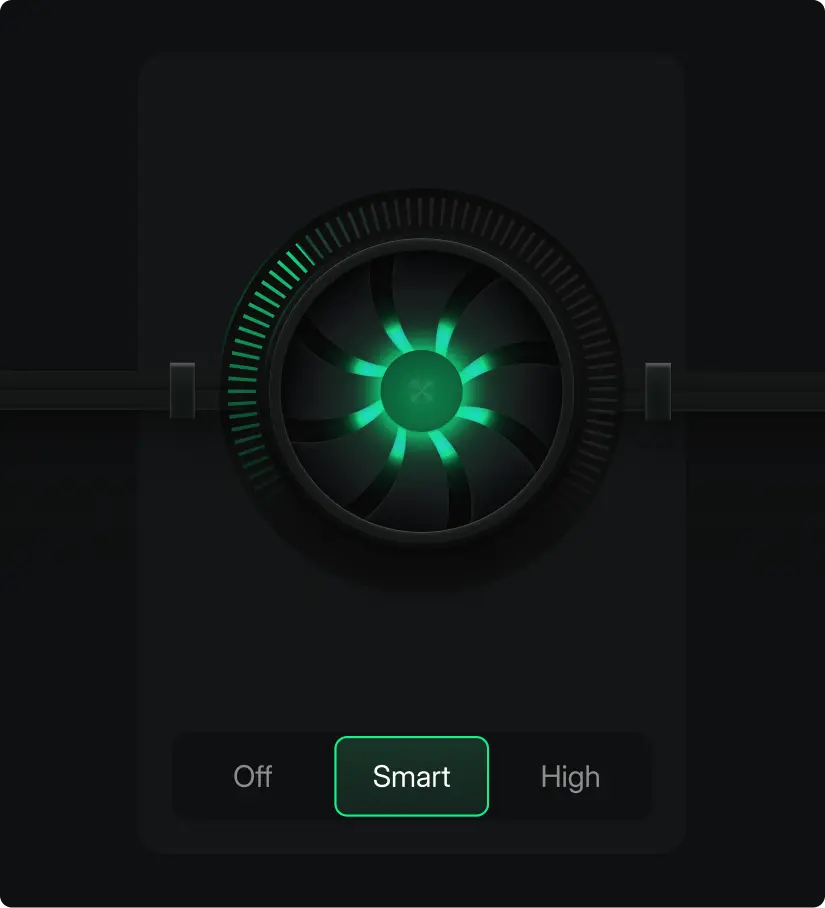
Unlock the full potential of your graphics card with a personalized overclocking algorithm built around your specific GPU. Get higher frame rates and smoother gameplay.

Hypertune GPU Overclocking control with Off, Smart and High modes, with Smart selected

03 System

Windows Debloating

Customizable Windows settings

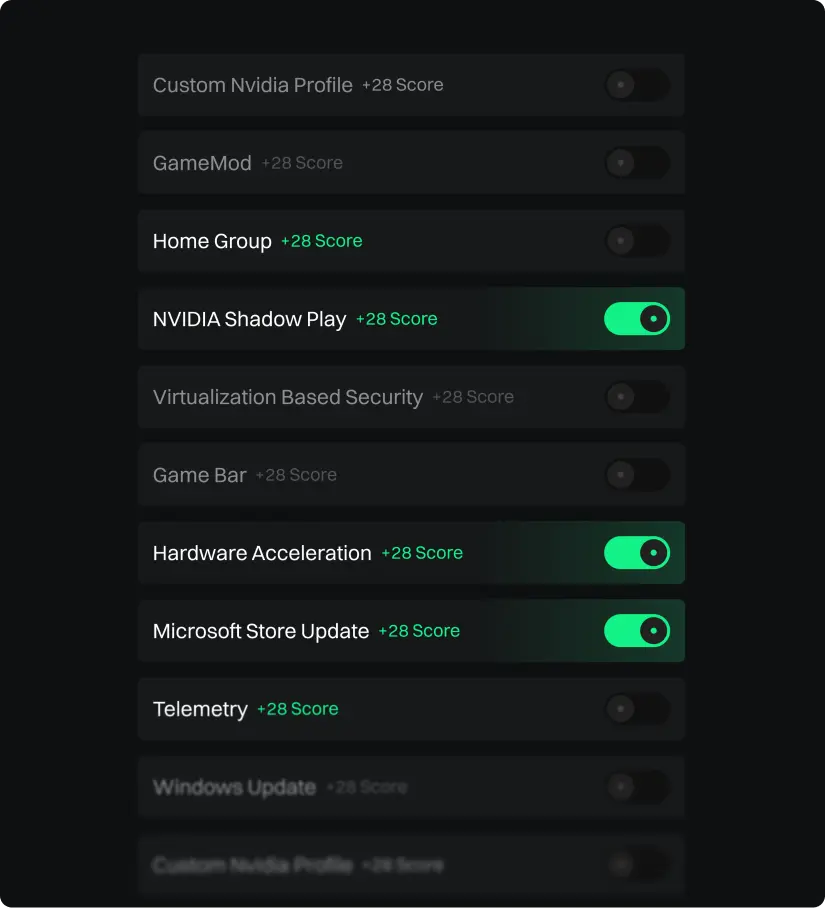
Strip away the bloat and take full control of your system with a complete customization suite. Toggle advanced Windows features and fine-tune your OS for pure gaming performance.

You pick them one by one. Game Bar, Telemetry, NVIDIA ShadowPlay and Hardware Acceleration each have their own switch.

Hypertune Windows Debloating list with a switch for each setting, including Game Bar, Telemetry and NVIDIA ShadowPlay

04 Network

Network Optimizations

Stabilized network

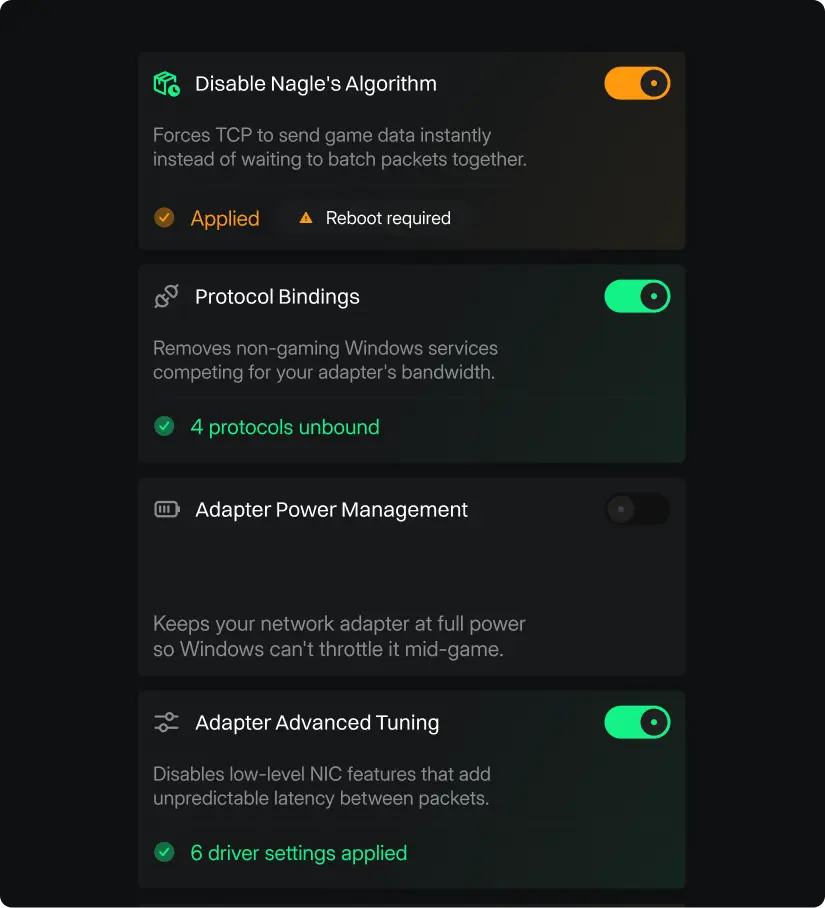
Lower your ping, cut packet loss, and stabilize your connection for competitive play. HyperTune optimizes your network settings so every shot registers when it should.

Settings include Disable Nagle's Algorithm, Protocol Bindings, Adapter Power Management and Adapter Advanced Tuning, and you turn each one on or off.

Hypertune Network Optimizations settings: Disable Nagle's Algorithm, Protocol Bindings, Adapter Power Management and Adapter Advanced Tuning

05 Memory

Memory Optimizations

Faster, lower-latency RAM

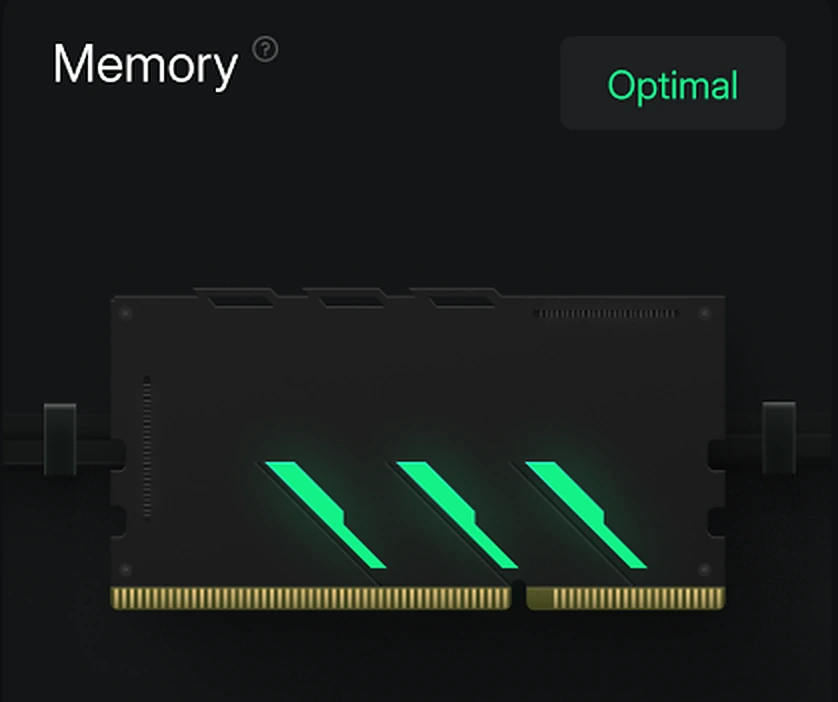
Hypertune adjusts your memory settings so RAM runs at a faster, lower-latency configuration. It does not write BIOS memory profiles such as XMP, EXPO or DOCP. Those stay in your motherboard settings.

Hypertune Memory Optimizations panel, marked Optimal

06 Games

Game Hub

Game specific optimizations

Access personalized, game-specific tweaks all from one central hub. HyperTune applies optimized profiles tailored to each title, so you get the best settings for every game you play.

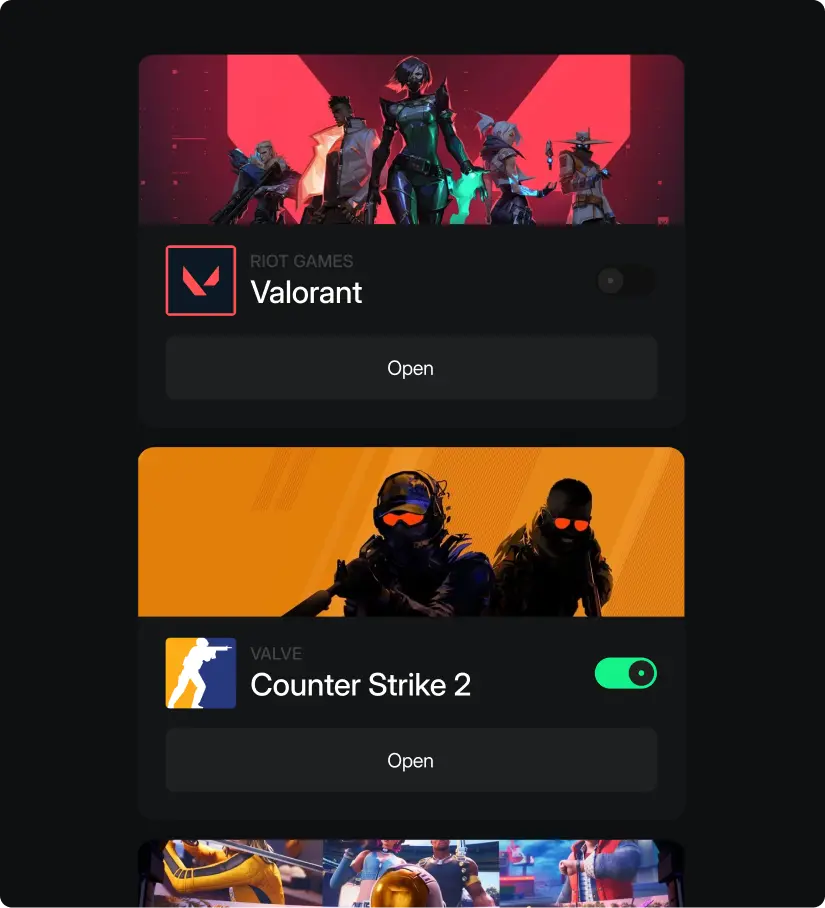
Profiles include Valorant, Counter-Strike 2, Fortnite, Marvel Rivals, Rust and Rainbow Six Siege.

Hypertune Game Hub with game profiles for Valorant and Counter-Strike 2, each with an Open button

FAQ

Your questions, answered.

How does Hypertune optimize a PC for gaming?

It reads your CPU, GPU, RAM, storage type, Windows version and driver versions, and builds a profile for that PC instead of generic settings. You turn on the features you want, and it applies only those. The tutorial walks through setup in five steps.

I have a high-end PC. Do I actually need this?

Yes. Even the best hardware is often "choked" by default Windows settings designed for office work, not gaming. Hypertune focuses on consistency and 0.1% lows. We eliminate the micro-stutters and input lag that high-end parts still suffer from, ensuring your hardware hits its absolute ceiling.

Is this a subscription or a one-time purchase?

Hypertune is a subscription service. We opted for this model because PC optimization isn't a 'set it and forget it' task. Windows updates and game patches launch weekly; our team works around the clock to update our logic so your PC stays optimized for the latest software.

What if I don't see an improvement?

Every plan comes with a 7-day money-back guarantee. If you're not satisfied, request a full refund within 7 days of your first payment.

Will Hypertune get me banned (Valorant, Warzone, etc.)?

No. Hypertune operates at the system and hardware level, not the game-file level. We do not modify game code or inject any files into your game directory. It is 100% anti-cheat safe and used by Tier-1 pros.

For more on safety, refunds and who makes Hypertune, see Is Hypertune safe?

Can this break my Windows installation?

Unlike manual YouTube registry tweaks that can be risky, Hypertune uses proprietary logic built by the performance specialists at Compready. Our optimizations are non-destructive and can be reverted with a single click.

Will the software slow my PC down while it's running?

Quite the opposite. Hypertune is designed to be ultra-lightweight. Once your optimizations are applied, the app consumes near-zero resources, leaving all your CPU and RAM power for your games.

Does Hypertune overclock my hardware? Will it overheat?

We offer optional Smart Overclocking for GPUs, and for Intel and AMD CPUs. Unlike "blind" boosts, our engine runs automated stress tests on your specific silicon to find the fastest stable speed. If your cooling can't handle it, Hypertune won't apply it.

What we change

Hypertune applies only the settings you turn on. You can revert them in the app, and it does not edit files inside your games.

  • CPU Overclocking: a faster stable speed for your processor
  • GPU Overclocking: clock, memory, and power tuned for your card
  • Windows Debloating: gaming features you can turn back off
  • Network Optimizations: settings that cut lag and packet loss
  • Memory Optimizations: faster, lower-latency RAM settings
  • Game Hub: a profile for each title

Uninstalling Hypertune

Remove the Windows app

Hypertune is a standard Windows application, installed with hypertune-setup.exe. You can remove it from Windows the same way you remove any other app. You do not need a separate removal tool.

Before you uninstall

Open Hypertune, go to the Restore tab, choose your most recent restore point and select Restore. Do this before you uninstall if you want Windows and hardware settings returned to how they were.

Removing the app does not cancel your Hypertune subscription. To stop billing, cancel from your account on hypertune.gg.

Windows 11

  1. Open Settings.
  2. Go to Apps, then Installed apps.
  3. Find Hypertune.
  4. Open the menu next to it and choose Uninstall.
  5. Confirm when Windows asks.

Windows 10

  1. Open Settings.
  2. Go to Apps, then Apps & features.
  3. Find Hypertune.
  4. Select Uninstall.
  5. Confirm when Windows asks.

If Hypertune is still listed

Restart your PC, then open Apps again and look for Hypertune. If it is still there, repeat the uninstall steps for your version of Windows.

Need help

If you need help removing Hypertune, contact us at: COMPREADY Inc. info@hypertune.gg

Join the community

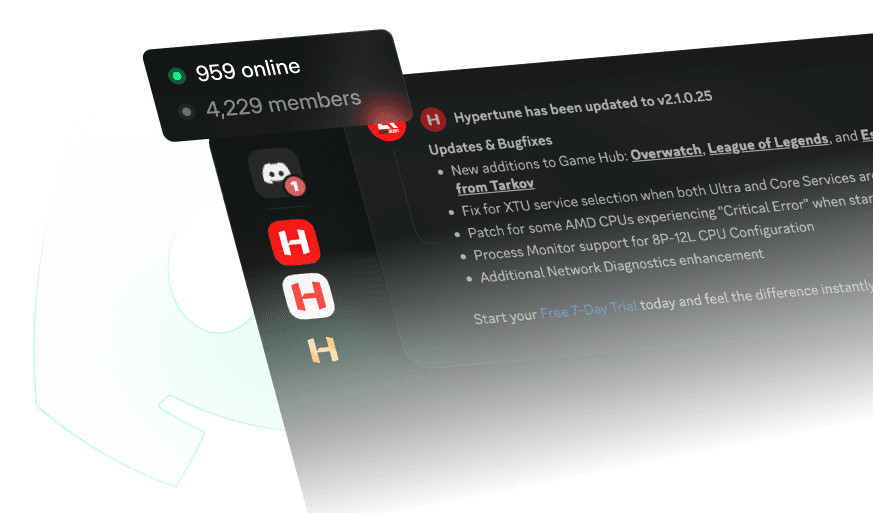
Get direct support, updates, and real-world tuning advice from 10,000+ gamers and the team behind HyperTune.

Join Discord

Join the HyperTune creator program

Convert on your influence with your community into long term recurring revenue

Apply

Join the team

We're building the future of PC performance for the generations ahead. If you want in, we want to hear from you.

Join Now

Hey, you. It's time to start winning again.